Effective email organization is crucial for maintaining productivity and reducing stress. This comprehensive guide provides a range of strategies, from basic folder structures to advanced techniques like using rules and filters. We’ll explore various methods for categorizing, prioritizing, and managing your inbox, ultimately empowering you to reclaim control of your email communications.
From simple steps like creating clear folder structures to more sophisticated approaches using email rules and specialized tools, this guide offers actionable advice to help you master email management. We’ll delve into practical examples and templates to make the process easy to understand and implement.
Email Organization Strategies
Effective email management is crucial for maintaining productivity and minimizing stress. A well-organized inbox allows you to quickly locate essential information, prioritize tasks, and prevent overwhelming amounts of unread messages. This section details various strategies for achieving inbox efficiency.Email organization isn’t a one-size-fits-all solution; tailoring a strategy to your specific needs and workflow is key to its effectiveness.
Consider factors like the volume of your email traffic, the types of emails you receive, and your preferred work style when choosing a method.
Email Categorization Methods
Categorizing emails into specific folders or labels allows for swift retrieval of information. This method is particularly useful for managing different project phases, client communications, or personal matters. By establishing clear categories, you create a structured system for finding the necessary information quickly.
- Project-Based Categorization: Create folders for each project you’re working on. This allows you to group all related emails together. For instance, a project titled “Marketing Campaign Alpha” could have a corresponding folder for all emails related to that project, including client communications, meeting notes, and progress reports.
- Client-Specific Categorization: Designate folders for each client you interact with. This helps keep all communications pertaining to a specific client in one place, streamlining your interaction with them.
- Type-Based Categorization: Create folders based on the type of email, such as “Invoices,” “Proposals,” “Meeting Reminders,” and “Administrative Tasks.” This is effective for quickly locating emails related to a specific task or process.
Email Prioritization Techniques
Prioritizing emails based on urgency and importance is essential for effective time management. A well-defined system for prioritizing emails prevents important messages from being overlooked.
- Urgent/Important Matrix: Use a two-by-two matrix to categorize emails based on urgency and importance. This will help you focus on crucial tasks and complete them effectively.
- Time-Based Prioritization: Assign deadlines to tasks based on the email’s urgency. This helps to organize and plan accordingly for future tasks, and reduces the stress of last-minute tasks.
- Subject Line Analysis: Analyze the subject lines of your emails to quickly identify critical messages requiring immediate attention. This helps you focus on the most crucial items first.
Inbox Clutter Management
Managing inbox clutter is vital for maintaining a productive workflow. A cluttered inbox can quickly become overwhelming and hinder your ability to focus on important tasks.
- Regular Decluttering: Set aside dedicated time each week or day to address your inbox. This helps to maintain a clear and organized inbox. For example, you could set aside 30 minutes every Monday morning for inbox management.
- Batch Processing: Process similar emails together, such as responding to multiple client inquiries or sending out meeting confirmations. This will help you to maintain an organized inbox.
- Out-of-Office Auto-Reply: Use auto-replies for situations when you are unable to respond immediately. This helps manage expectations and prevents unnecessary back-and-forth.
Email Flagging and Archiving
Implementing a system for flagging and archiving emails is a critical part of effective email management. This ensures that you can easily retrieve important information and reduce clutter.
- Flagging System: Establish a consistent system for flagging important emails. For example, use color-coded flags to represent different levels of urgency.
- Archiving Strategy: Develop an archiving strategy that allows you to easily find important information in the future. For instance, archive emails related to completed projects.
Implementing an Email Organization Strategy
This table presents a structured approach to implementing an email organization strategy:
| Strategy | Description | Example |
|---|---|---|
| Project-Based Categorization | Organize emails into folders based on the project they relate to. | Create a folder for “Project Phoenix” to store all related emails. |
| Time-Based Prioritization | Prioritize emails based on deadlines and urgency. | Assign a deadline to an email requiring immediate action. |
| Inbox Zero | Completely empty your inbox at the end of each day. | Process all emails and delete, archive, or file them appropriately. |
Folder Structures and Labels
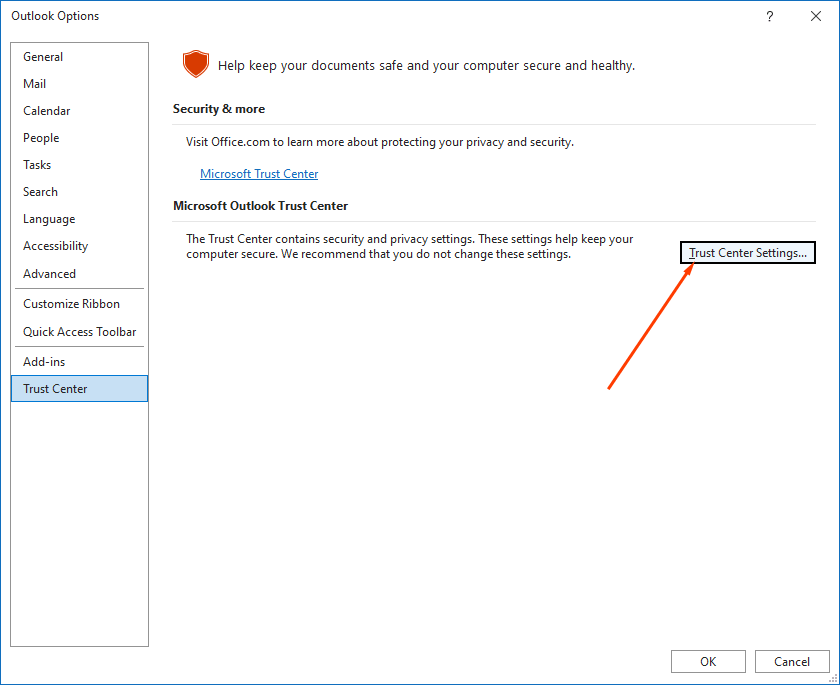
Effective email organization goes beyond simply creating folders; it involves a strategic approach that allows you to quickly locate the information you need. A well-defined folder structure, combined with intelligent labeling, empowers you to manage your inbox efficiently and reduce the time spent searching for crucial communications. This section will guide you in developing and maintaining a robust system for organizing your emails.A robust folder and labeling system significantly improves email management.
By categorizing emails based on projects, clients, or topics, you can easily retrieve specific communications. This system streamlines your workflow and reduces the risk of losing important information.
Folder Structures for Organization
A well-structured folder system is critical for managing emails efficiently. By creating logical folders based on projects, clients, or topics, you can easily locate specific emails. This system prevents your inbox from becoming cluttered and improves the efficiency of your workflow.
| Folder Name | Purpose | Example Email Subject |
|---|---|---|
| Projects | Organize emails related to ongoing projects. | Project Phoenix – Q3 Progress Report |
| Clients | Categorize emails from specific clients. | Client: Acme Corp – Contract Renewal |
| Marketing Campaigns | Organize emails related to marketing initiatives. | Marketing Campaign: Summer Sale – Results |
| Sales | Organize emails related to sales activities. | Sales Lead: John Smith – Follow Up |
| Support | Organize emails related to customer support inquiries. | Support Ticket: #1234 – Order Issue |
| General | Store emails that don’t fit into other categories. | Meeting Reminder: Team Briefing |
Labeling for Enhanced Categorization
Labels provide an additional layer of categorization, enabling more granular organization within your folders. This enhances the search functionality and allows you to quickly find emails based on specific criteria. This granular approach helps to keep track of different aspects of projects or client interactions.Using labels, you can categorize emails by priority, status, or any other relevant criteria. For instance, you can label emails as “high priority” or “action required” to ensure they receive timely attention.
Creating and Assigning Custom Labels
Custom labels provide a tailored approach to organizing emails. These labels can be created to match your specific workflow and requirements, such as labeling emails related to specific team members or projects. To create custom labels, navigate to the label settings within your email client.This feature allows for flexibility in email organization, empowering users to tailor their system to match individual workflow needs.
Maintaining Consistent Folder and Label Structures
Maintaining a consistent folder and label structure is crucial for long-term email organization. Establish clear guidelines and communicate them to your team to ensure everyone uses the same system. This ensures that everyone is on the same page regarding email organization.Regularly reviewing and updating your folder and label structure ensures its continued effectiveness. This proactive approach prevents your system from becoming outdated and inefficient over time.
Template for a Flexible Folder Structure
A well-designed template for a folder structure allows for adaptation to various email needs. The adaptability of this template makes it suitable for different business sizes and workflows. It ensures the system can scale and evolve as your needs change.
| Folder Name | Purpose | Example Email Subject |
|---|---|---|
| [Client Name] | Organize emails related to a specific client. | [Client Name]
|
| [Project Name] | Organize emails related to a specific project. | [Project Name]
|
| [Topic] | Organize emails related to a specific topic. | [Topic]
|
| [Team] | Organize emails related to a specific team. | [Team]
|
| [Status] | Organize emails based on their status. | [Status]
|
Rules and Filters
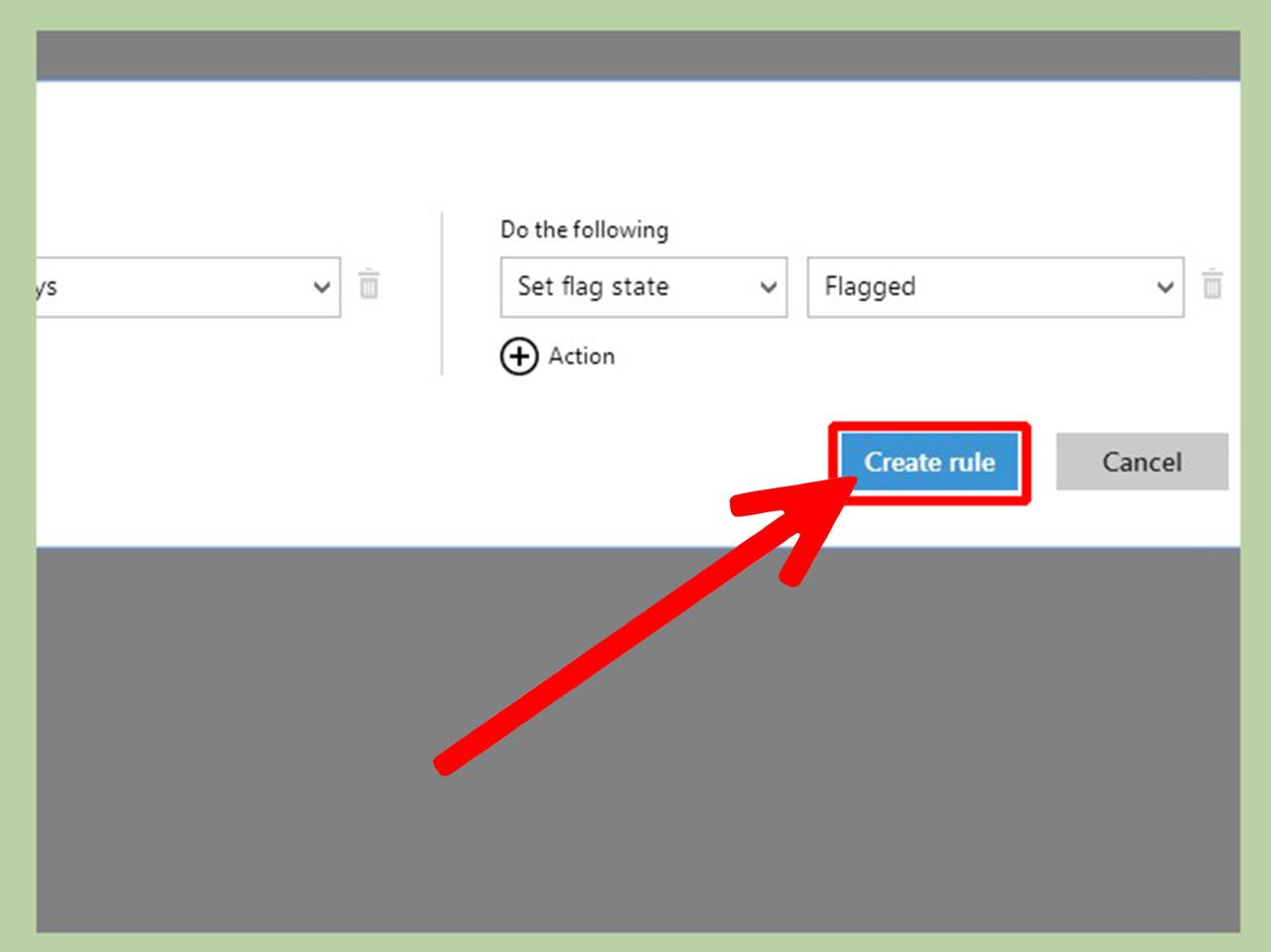
Email rules and filters are powerful tools for automating email management. They allow you to proactively categorize, sort, and respond to emails based on specific criteria, saving you valuable time and effort. This streamlined approach ensures that important messages don’t get lost in the inbox clutter.Implementing rules and filters significantly improves email organization, transforming a potentially overwhelming inbox into a manageable and productive system.
By automatically directing emails to designated folders and applying standardized responses, you can focus on the most important tasks at hand.
Setting Up Email Rules
Email rules, also known as filters, automatically process incoming emails based on predefined criteria. This allows you to categorize and manage emails without manual intervention. Rules can be set up for various conditions, from the sender’s email address to the subject line. Once a rule is activated, it will apply the specified action to the email matching the criteria.
Using Filters for Sorting
Filters, as mentioned, offer a powerful way to sort and organize emails based on specific characteristics. This includes sorting by sender, subject, or s within the email content. Filters are adaptable to diverse needs, such as directing emails from specific clients to dedicated folders or marking important emails with labels.
Automated Responses
Automated responses can streamline your communication by providing pre-written replies to specific types of emails. This is particularly helpful for common inquiries, such as order status updates or general support requests. By creating automated responses, you can maintain a consistent level of service while minimizing manual work.
Examples of Rules and Filters
- Rule: Emails from a specific vendor. Condition: Sender is “[email protected]”. Action: Move to “Vendor Emails” folder. Result: Emails from the vendor are automatically placed in a dedicated folder.
- Rule: High-priority emails. Condition: Subject line contains “urgent” or “important”. Action: Mark as important. Result: Important emails are immediately flagged for quick attention.
- Rule: Invoices. Condition: Subject line contains “invoice”. Action: Move to “Invoices” folder and mark as read. Result: Invoices are automatically filed and marked as read, saving time for later review.
Troubleshooting Common Issues
Issues with email rules and filters often stem from incorrect settings or conflicting rules. Double-check the conditions and actions specified for each rule to ensure accuracy. If a rule isn’t working as expected, review the criteria and make necessary adjustments. Also, ensure the rule is enabled and not disabled or overwritten by other rules.
Table of Rules and Filters
| Rule Name | Condition | Action | Result |
|---|---|---|---|
| High-Priority Emails | Subject contains “urgent” or “important” | Mark as important | Important emails are flagged |
| Invoices | Subject contains “invoice” | Move to “Invoices” folder and mark as read | Invoices are filed and marked as read |
| Vendor Emails | Sender is “[email protected]” | Move to “Vendor Emails” folder | Emails from the vendor are filed in a dedicated folder |
Tools and Add-ons
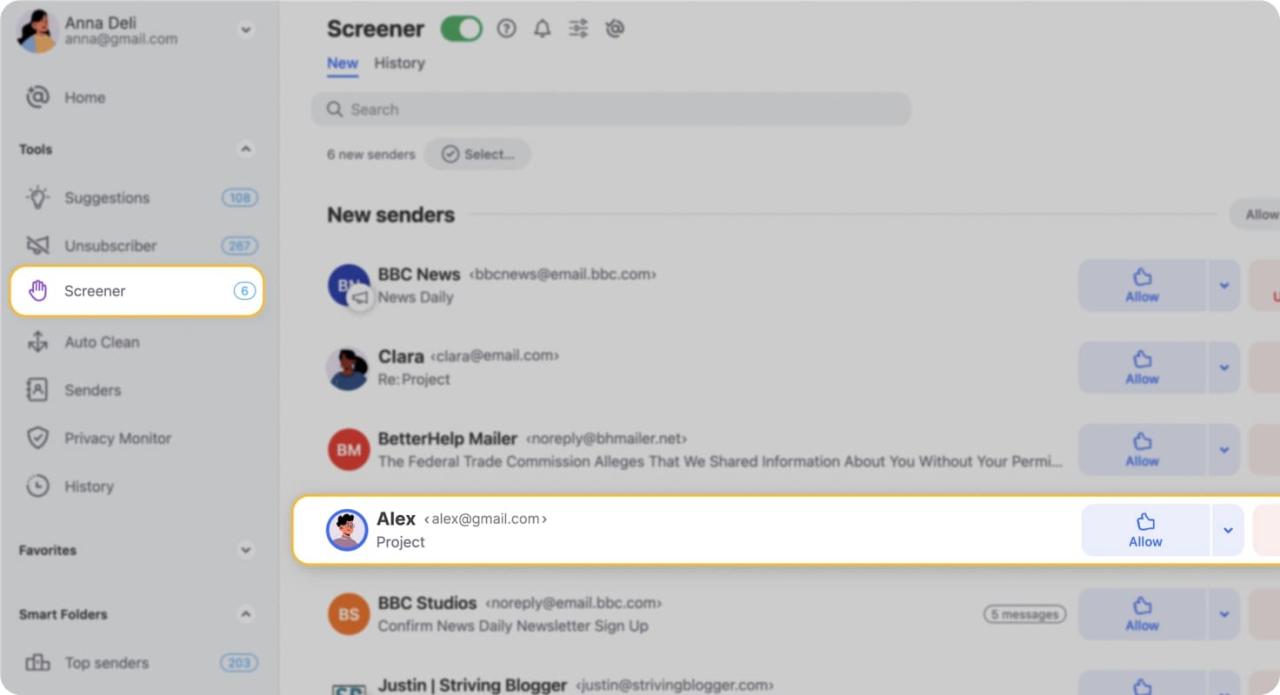
Email management tools and add-ons can significantly enhance the organization and efficiency of your inbox. These tools offer features to automate tasks, categorize emails, and improve your overall workflow. Choosing the right tool depends on your specific needs and workflow preferences.Effective email management is no longer just about inbox organization; it’s about streamlining your entire communication process. The right tools can help you prioritize, respond faster, and maintain a productive workflow.
By automating repetitive tasks and improving categorization, these tools free up your time for more important activities.
Popular Email Management Tools
Various email management tools and add-ons are available, each offering unique features. Some are integrated into email clients, while others are standalone applications. These tools provide different approaches to organization, automation, and task management, helping you tailor your workflow to your specific needs.
- Mailspring: Mailspring is a popular email client known for its clean interface, powerful features, and robust organization capabilities. It supports a variety of customization options, including advanced folder structures and filtering rules. Its intuitive interface allows users to easily navigate and manage their emails efficiently.
- Spark: Spark is an email client that emphasizes productivity and streamlining. It features smart sorting, intelligent email categorization, and automated task creation, making it ideal for those who prioritize task management within their email workflow. The focus is on helping users respond promptly and stay on top of their to-do lists.
- Boomerang: Boomerang is an add-on for Gmail, Outlook, and other email clients that helps users schedule emails, follow up on missed responses, and manage their inbox more efficiently. Its automated features help you send emails at optimal times and track when recipients open and respond. This ensures you maintain a productive email communication process.
Features of Email Clients Enhancing Organization
Many email clients offer built-in features that enhance email organization. These features allow for more complex filtering, custom labeling, and efficient organization strategies.
- Smart Folders: Some email clients offer smart folders that automatically categorize emails based on criteria such as sender, subject, or s. This significantly reduces manual sorting and helps users maintain a well-organized inbox.
- Customizable Labels: The ability to create custom labels to categorize emails allows for highly personalized organization. Labels can be used in conjunction with filters and rules to automate actions and maintain a well-structured inbox.
- Rules and Filters: Email clients often provide options to create rules and filters to automatically sort, move, or forward emails based on specific criteria. This automation greatly streamlines your email management process.
Using Add-ons to Automate Tasks
Email add-ons can automate various tasks, significantly improving efficiency. These add-ons allow users to automate actions based on specific criteria, saving time and effort.
- Automated Responses: Add-ons can be used to automatically respond to certain types of emails, such as general inquiries or requests for information. This saves time and ensures that important inquiries are promptly addressed.
- Email Scheduling: Many add-ons allow you to schedule emails to be sent at specific times, which is useful for planning and sending communications at optimal times.
- Email Tracking: Add-ons can track when emails are opened and when recipients respond, providing insights into recipient engagement and helping you better manage your communication workflow.
Comparing Email Management Tools
Choosing the right email management tool depends on your specific needs and preferences. Consider the features offered by each tool and how they align with your workflow. A detailed comparison can help you make an informed decision.
| Tool Name | Description | Key Features |
|---|---|---|
| Mailspring | A powerful email client | Customizable folders, advanced filtering, intuitive interface |
| Spark | Focuses on productivity | Smart sorting, intelligent categorization, automated task creation |
| Boomerang | Email add-on for scheduling and follow-up | Email scheduling, follow-up reminders, email tracking |
Choosing an Email Tool Based on Individual Needs
Consider your individual needs and workflow when selecting an email management tool. Assess the features offered by different tools and choose one that best aligns with your specific requirements. This ensures you optimize your workflow and maximize your productivity.
Email Management Habits
Effective email management is crucial for maintaining focus and productivity in today’s fast-paced digital environment. Developing consistent habits allows you to control your inbox, respond efficiently, and avoid the overwhelming feeling of being constantly bombarded with messages. These habits, when properly implemented, significantly enhance your ability to prioritize tasks and dedicate your time to more meaningful activities.By establishing structured email management habits, you can transform your interaction with email from a source of stress into a tool for streamlining your workflow.
This involves proactively managing your expectations, reducing distractions, and utilizing tools and techniques that best serve your needs. This approach empowers you to achieve a healthier work-life balance, maximizing your time and reducing the negative impact of email overload.
Developing Good Email Management Habits
Effective email management begins with a proactive approach. These habits form the foundation for efficient communication and reduced stress.
- Establish Regular Check-in Times: Instead of constantly checking email, designate specific periods for review. This approach helps to prevent interruptions and allows you to process messages in focused blocks. For example, schedule 15-30 minute intervals during the morning and afternoon, or even once a day at a predetermined time. This allows for a focused attention span, which is important for productivity.
- Batch Responding: Instead of responding to each email individually, group similar messages and respond to them in batches. This approach streamlines your response time and allows you to address several matters at once. For instance, group emails related to project updates or client inquiries and respond to them in one go, enhancing efficiency.
- Prioritize and Categorize: Assign importance levels to incoming emails. Use labels and folders to categorize messages based on urgency and project relevance. This helps you to quickly identify and address the most critical issues. For instance, mark urgent emails with a high-priority label and file routine communications in appropriate folders for quick retrieval.
- Set Boundaries: Define specific times for checking and responding to emails, and stick to them. This is essential to avoid being constantly connected and allows you to allocate time for other important tasks. Avoid checking emails during personal time, meetings, or focused work sessions. Set specific times to review your inbox, which will improve efficiency and time management.
Responding to Emails in a Timely Manner
Prompt responses foster positive relationships and demonstrate professionalism. Timely replies show respect for the sender’s time and demonstrate a commitment to effective communication.
- Immediate Responses for Urgent Matters: Respond to urgent emails promptly to address immediate needs or inquiries. This often includes emails that require immediate action or information. This is vital to manage urgent tasks and expectations.
- Scheduled Responses for Non-Urgent Issues: For non-urgent emails, schedule a specific time to respond. This practice ensures that important issues are addressed and that less urgent emails are dealt with in an organized and efficient manner.
- Establish a Consistent Response Time: Communicate your typical response time to colleagues and clients. This helps to manage expectations and avoid unnecessary follow-up inquiries. For example, if you aim to respond within 24 hours, communicate this expectation to your recipients to foster effective communication and collaboration.
Managing Email Expectations
Clearly defining email expectations is vital for reducing stress and fostering positive relationships. This includes outlining response times, acceptable communication channels, and procedures for handling various types of messages.
- Communicate Email Policies: Establish clear guidelines for email use within your team or organization. This helps to manage expectations for response times and communication styles. For example, communicate policies regarding acceptable response times, and acceptable communication channels.
- Set Realistic Response Time Goals: Avoid setting unrealistic expectations for yourself or others. Be mindful of the volume of emails and allocate sufficient time to address them effectively. For example, avoid promising responses within the hour for all emails, unless you have the capacity to handle it.
- Utilize Automated Responses: Implement automated responses for common inquiries to expedite the process and reduce the burden on you. This is particularly helpful for common inquiries and simple requests, freeing up time for more complex matters.
Reducing the Urge to Constantly Check Email
Constant email checking can lead to distraction and decreased productivity. Developing strategies to minimize this urge is essential for maintaining focus and efficiency.
- Turn Off Email Notifications: Disable email notifications on your computer and mobile devices to minimize interruptions. This helps to reduce distractions and improve focus. Turning off notifications during focused work periods is beneficial for maintaining concentration.
- Designate Specific Time Blocks: Schedule dedicated time slots for checking email, and avoid checking it during other activities. This approach helps to structure your workflow and minimize interruptions.
- Establish Clear Boundaries: Set clear boundaries between work and personal time to avoid constantly checking email outside of work hours. For example, avoid checking email during personal time, meetings, or focused work sessions.
Dealing with Spam and Junk
Effective email management hinges significantly on mitigating the influx of unwanted messages. Spam and junk emails can disrupt productivity, clog inboxes, and potentially expose users to malicious content. Implementing robust strategies for identifying, filtering, and managing these messages is crucial for a smooth and efficient workflow.
Identifying Spam Emails
Spam filters, while effective, aren’t foolproof. Understanding common spam characteristics can enhance manual identification and contribute to a more comprehensive filtering strategy. Recognizing patterns in sender addresses, subject lines, and content is key. Unusual characters, misspellings, and overly promotional language are often red flags. Be wary of messages promising extraordinary opportunities or requiring immediate action, as these are common tactics employed by spammers.
Setting Up Spam Filters
Email providers offer built-in spam filters that employ sophisticated algorithms to categorize and isolate unwanted messages. Configuring these filters is vital for preventing spam from reaching your inbox. Most providers allow users to adjust the sensitivity of the filter to accommodate individual preferences and needs. Customizing settings based on specific spam types can significantly reduce the number of false positives.
Creating Custom Filters
Further refinement of spam filtering is achievable through custom filters. These filters enable users to create rules based on specific criteria such as sender addresses, s, or subject lines. This tailored approach ensures that messages matching specific patterns are automatically diverted or deleted, further enhancing inbox organization.
Managing Junk Emails
Regular review of spam filters and manual identification of problematic messages are crucial for maintaining an efficient and organized inbox. This process can involve flagging suspicious emails, deleting obvious spam, or reporting problematic senders. The use of email clients’ reporting features to flag spam to the provider’s systems can assist in improving the overall spam filtering accuracy.
Updating Spam Filters
Spam filters are dynamic tools; their effectiveness relies on continuous updates. Spammers constantly evolve their tactics, employing new methods and techniques to bypass existing filters. Regularly updating the spam filters ensures that the system remains equipped to recognize and block the latest spam trends.
Best Practices for Managing Junk Emails
| Spam Type | Description | Prevention Method |
|---|---|---|
| Phishing Emails | These emails attempt to trick recipients into revealing personal information, like passwords or credit card details, by posing as legitimate organizations. | Be cautious of emails requesting sensitive information. Verify the sender’s authenticity through official websites. Avoid clicking suspicious links. |
| Malicious Attachments | These emails may contain malicious software that can infect your computer if opened. | Never open attachments from unknown senders. Scan attachments with antivirus software before opening. |
| Unsolicited Promotional Emails | These are unsolicited advertisements or promotional messages. | Report these emails to the email provider. Unsubscribe from unwanted mailing lists. |
| Fake News/Hoaxes | These emails contain fabricated or misleading information, often spreading false rumors or sensational stories. | Verify the information from reputable news sources. Be skeptical of emails with sensational claims. |
Mobile Email Organization
Effective email management extends beyond desktop computers. Mobile devices have become indispensable tools for accessing and managing our inboxes, requiring specific strategies for efficient organization. This section explores methods for optimizing email organization on mobile platforms.Mobile email organization is crucial for maintaining productivity and reducing inbox clutter. Utilizing the right apps and techniques ensures that important emails are readily accessible while trivial ones are swiftly dealt with.
This approach allows users to stay connected and organized regardless of their location.
Mobile Email App Selection
Choosing the right mobile email application can significantly impact your email organization. Consider factors such as ease of use, features for filtering and sorting, and the ability to sync with multiple accounts. Different applications offer varying degrees of customization, which can be vital for maintaining a streamlined inbox.
Email Account Management on Mobile
Efficiently managing multiple email accounts on mobile devices requires a structured approach. This involves understanding account settings, enabling or disabling features like push notifications, and establishing appropriate folder structures. This structured approach allows users to segregate emails effectively.
Synchronization Strategies
Maintaining consistent access to emails across multiple devices is vital for maintaining a unified inbox. Proper synchronization ensures that emails are readily available on all connected devices. This includes understanding the synchronization options offered by the email provider and the mobile app. Careful configuration ensures that updates and changes are reflected across all devices, avoiding duplicate or missing emails.
Customizing Mobile Email Settings
Customization options within mobile email applications can significantly enhance organization. Understanding and utilizing these features can greatly improve efficiency. This includes configuring sorting preferences, setting up filters, and leveraging rules to automate certain tasks.
Actionable Tips for Mobile Email Organization
- Prioritize email apps with intuitive interfaces. A well-designed interface streamlines navigation and simplifies managing multiple accounts.
- Utilize filtering and sorting options. Effectively categorize emails based on sender, subject, or s for easy retrieval.
- Enable or disable push notifications strategically. Control email alerts to avoid distractions and prioritize important communications.
- Create and maintain designated folders for different email types. This facilitates easy categorization and retrieval of specific emails.
- Leverage rules and filters to automate actions. Set up rules to automatically move or categorize emails based on criteria.
- Regularly review and adjust your mobile email settings. Adapt settings as your email needs evolve, ensuring optimal organization.
- Sync email accounts across devices. Configure synchronization to ensure that changes are reflected across all connected devices, maintaining a unified view.
- Familiarize yourself with the mobile email app’s features. Utilize advanced tools for better management of your inbox.
Outcome Summary
In conclusion, mastering email organization is a journey of continuous improvement. By implementing the strategies and techniques Artikeld in this guide, you can transform your email experience from a source of overwhelm to a tool for enhanced productivity. Remember that finding the right balance between organization and efficiency is key, and tailoring your methods to your specific needs will lead to the greatest success.